
Documentation/Patient Records
Module guide · Clinical
Patient Records
Everything about registering, finding, and reviewing a patient, from the front-desk sign-up form to the full 360° clinical picture.
What this module is for
Patient Records is the front door of Medi360. It's where every patient's identity, contact details, insurance and core clinical facts live, and it's the record that every other module, appointments, billing, labs, surgery, points back to.
Who uses it
Front-desk and registration staff sign patients up. Nurses and clinicians read and update the chart during care. Billing staff rely on the insurance on file. Administrators use the dashboard and analytics to see patient volume at a glance.
Where to find it
Open Patients from the main sidebar. That takes you to the module dashboard; from there, every screen in this guide is one click away.
This guide covers seven screens, in the order you'll typically use them:
- 1
Dashboard
Snapshot of how many patients you have and how many were added recently.
- 2
Patient list
Search, filter and manage every patient on record.
- 3
Register a patient
The sign-up form used to add someone new to the system.
- 4
Patient chart
One patient's full record: demographics, vitals, insurance, flags, consents, portal, labs and imaging.
- 5
Advanced search
Find a patient by combining several criteria at once.
- 6
Patient analytics & 360° records
Two visual, clinically-focused views of a single patient's history.
Patient Dashboard
The landing page of the module: a quick read on patient volume, who was added most recently, and one-click shortcuts to common tasks.
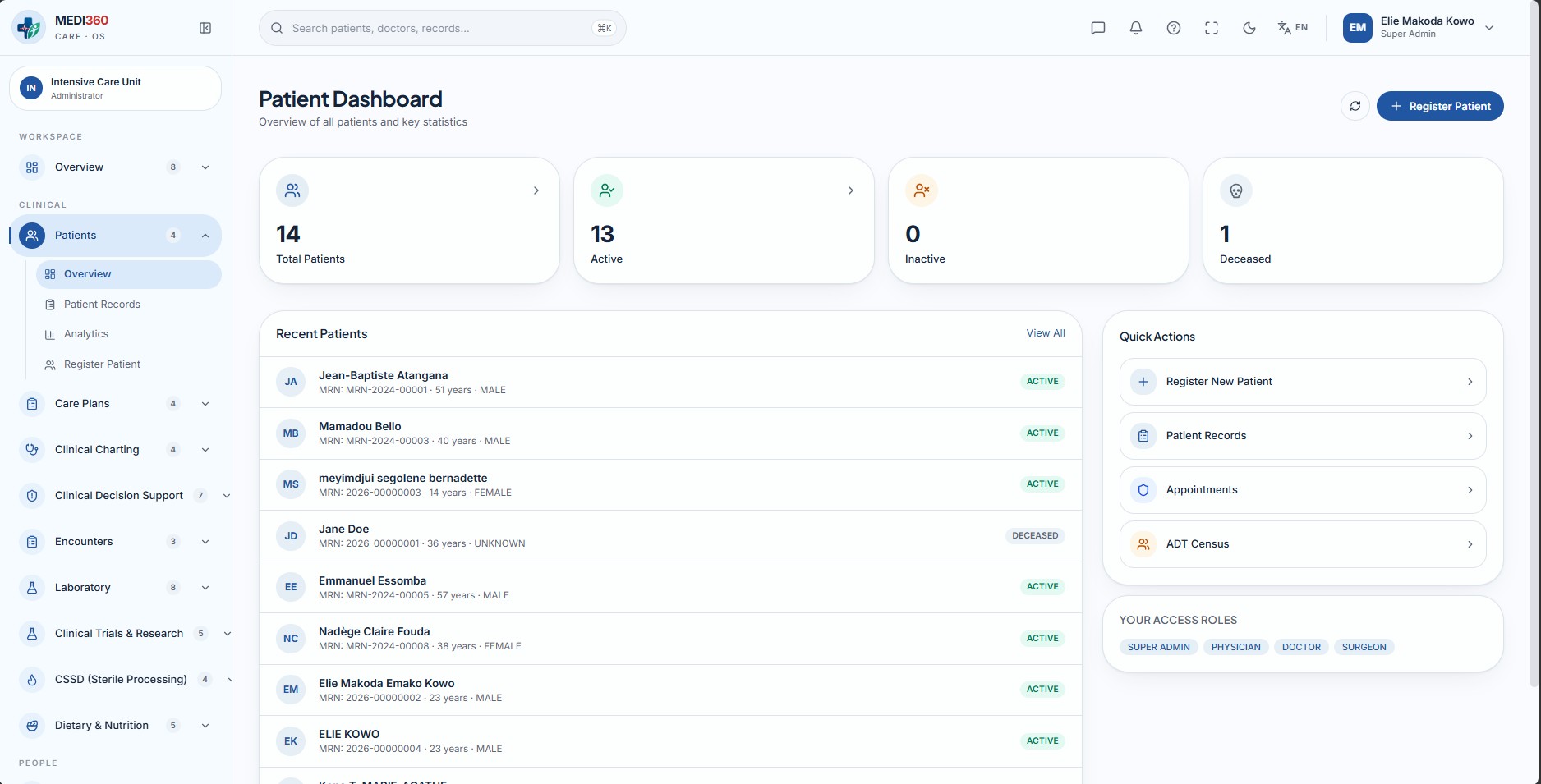
The four stat cards
| Field | What it means |
|---|---|
| Total Patients | Everyone ever registered in the system, active or not. |
| Active | Patients currently receiving or eligible for care. Click through to the filtered patient list. |
| Inactive | Patients deactivated, for example because they've transferred care elsewhere or haven't been seen in a long time. |
| Deceased | Patients marked deceased. Kept on record for legal and historical purposes, but excluded from active-care workflows. |
Recently Registered
The ten most recently added patients, with name, MRN, age, gender and status. Click any row to open that patient's chart. "View all" opens the full patient list.
Quick Actions
One-click shortcuts to Register New Patient, Patient Records, Appointments and ADT / Census, the four things staff reach for most often from here.
Your Access
Patient List
The master list of every patient, with search, filters, bulk actions, and CSV import/export.
Columns (list view)
| Field | What it means |
|---|---|
| Patient | Avatar initials, full name and, in parentheses, preferred name if one is on file. |
| MRN | Medical Record Number, the unique ID assigned automatically when a patient is registered. |
| DOB / Age | Date of birth, with the calculated current age alongside it. |
| Gender | As recorded on the patient's demographics. |
| Status | Active (green), Inactive (amber) or Deceased (gray) — see the legend below. |
| Phone | The patient's primary phone number, if one is on file. |
Search & filter
The search box matches name, MRN or phone as you type. The Active / Inactive / Deceased / All pills filter the list further, and the list/grid toggle switches between a table and patient cards.
Bulk actions
Tick the checkbox on multiple rows to reveal a bulk action bar for activating or deactivating several patients at once, useful after a data cleanup.
Row menu actions (⋯)
| Field | What it means |
|---|---|
| View Details | Opens the full patient chart. |
| Deactivate | Marks an active patient inactive. Shown only for Active patients. |
| Reactivate | Restores an inactive patient to Active. Shown only for Inactive patients. |
| Mark Deceased | Records the patient as deceased. Shown for any patient not already marked deceased, and asks for confirmation first. |
Deactivate, Reactivate and Mark Deceased all ask for confirmation
Import & export
| Field | What it means |
|---|---|
| Export CSV | Downloads a spreadsheet of MRN, name, DOB, age, gender, blood type, status, phone and email. Exports your current selection if you've ticked rows, otherwise your current search/filter results. |
| Import CSV | Bulk-registers patients from a spreadsheet. Rows that fail validation are skipped and reported, valid rows are still imported. |
Active — currently receiving or eligible for care
Inactive — deactivated, not currently in active care
Deceased — patient has died; record retained
Register a New Patient
A six-section form. Only Identity and Address are required to save a record, everything else can be added later from the patient chart.
Required fields are marked with *
1 · Identity
| Field | What it means |
|---|---|
| First Name* | Patient's legal first name. |
| Last Name* | Patient's legal last name. |
| Middle Name | Optional. |
| Preferred Name | What the patient likes to be called, shown alongside their legal name throughout the chart. |
| Date of Birth* | Used to calculate age everywhere in the system. |
| Gender | Male, Female, Other or Unknown. |
| Marital Status | Single, Married, Divorced, Widowed, Separated, Domestic Partner or Unknown. |
2 · Address (required)
| Field | What it means |
|---|---|
| Street Address* | e.g. "123 Main St". |
| Apt / Suite / Unit | Optional unit or suite number. |
| City* | |
| State* | 2-letter code, e.g. "CA". |
| ZIP Code* | 5 digits, or ZIP+4 (e.g. 90210 or 90210-1234). |
| Address Type | Home, Work, Billing, Mailing or Other. |
3 · Phone Numbers (optional, add as many as needed)
| Field | What it means |
|---|---|
| Number | Include country code if known, e.g. +15550001234. |
| Type | Mobile, Home, Work, Fax or Other. |
| Primary | Check to mark this as the main number the front desk should call first. |
4 · Emergency Contacts (optional, add as many as needed)
| Field | What it means |
|---|---|
| First / Last Name* | Required if you add a contact at all. |
| Phone | Optional but recommended. |
| Optional. | |
| Relationship* | Spouse, Parent, Child, Sibling, Guardian, Emergency Contact, Employer, Friend, Caregiver or Other. |
5 · Insurance (optional, add as many plans as the patient carries)
| Field | What it means |
|---|---|
| Payer / Insurer Name* | The insurance company, required if you add a plan at all. |
| Member ID* | The patient's ID with that insurer. |
| Group Number | Optional employer/plan group number. |
| Priority* | Primary, Secondary or Tertiary, order in which plans are billed. |
| Plan Type* | PPO, HMO, EPO, POS, HDHP, Medicare, Medicaid, Tricare, CHAMPVA, Workers' Comp, Self-Pay, Uninsured, or Other. |
6 · Clinical (optional)
| Field | What it means |
|---|---|
| PCP NPI | The primary care provider's National Provider Identifier, exactly 10 digits if entered. |
| PCP Name | The primary care provider's name, e.g. "Dr. Jane Smith". |
| Height (cm) / Weight (kg) | Used to auto-calculate BMI below. |
| BMI (auto) | Calculated automatically from height and weight; not editable directly. Labeled Underweight, Normal, Overweight or Obese. |
| Blood Type | A+/A−, B+/B−, AB+/AB−, O+/O−, or Unknown. |
| Electrophoresis | Hemoglobin genotype (AA, AS, SS, AC, SC or CC), relevant for sickle-cell screening. |
The Patient Chart
Open any patient from the list or dashboard to reach their chart: identity and status up top, then eight tabs covering everything known about them.
The header shows the patient's name, a status badge, and MRN · date of birth · gender underneath. A back arrow returns to the list, and an Analytics button jumps to the clinical Patient Analytics view (see section 7).
Active — green badge across the chart
Inactive — amber badge
Deceased — gray badge
Tab 1 · Demographics
The patient's personal information and contact details, in one place. Click Edit to turn any field into an editable box or pill-selector; Save writes the change immediately and Cancel discards it, no confirmation is asked for edits.
| Field | What it means |
|---|---|
| Personal info | Name(s), date of birth, gender, race, ethnicity, preferred language, marital status, blood type, height/weight, auto-calculated BMI, and electrophoresis, the same fields captured at registration, all editable here. |
| SSN (masked) | Shown partially hidden for privacy; view-only. |
| Portal Enabled | Whether this patient has patient-portal access; view-only here, managed from the Portal tab. |
Phones — add with the Add Phone button; each entry can be deleted with its trash icon; one number can be marked Primary.
Emails — same pattern as phones, with a Primary flag.
Addresses — shown read-only on this tab (added during registration).
Emergency Contacts — add with Add Contact; same fields as at registration.
Tab 2 · Vitals
A table of the patient's last 20 recorded vital-sign checks, most recent first. Record Vitals opens a form to add a new reading, all fields are optional so you can record just what you measured.
| Field | What it means |
|---|---|
| Temp / BP / HR / RR / SpO2 / Pain | Temperature, blood pressure, heart rate, respiratory rate, blood-oxygen saturation and a 0–10 pain score. |
| Height / Weight | Recorded at the time of this check, separate from the demographics values. |
| NEWS2 | National Early Warning Score 2, an automatically calculated risk score built from the readings above. A score of 5 or higher is shown in bold red as an early sign the patient may be deteriorating and needs review. |
Tab 3 · Insurance
Every insurance plan on file, with the same fields captured at registration. Add Insurance adds a plan; the pencil icon edits one; the trash icon removes one, after a confirmation dialog since removing a plan is permanent.
| Field | What it means |
|---|---|
| Priority badge | Primary, Secondary or Tertiary, shows billing order. |
| Eligibility Status | Green badge shown when a coverage check has been run and confirmed active. |
| Inactive badge | Shown in gray if the plan is no longer active. |
Tab 4 · Flags
Clinical alerts staff need to notice at a glance, allergy alerts, fall risk, isolation precautions, and similar. Add Flag adds one (no confirmation); the checkmark button on an active flag resolves it, after confirming.
| Field | What it means |
|---|---|
| Flag Type | Allergy Alert, Fall Risk, Infection Control, Violence Risk, Elopement Risk, Latex Allergy, DNACPR (Do Not Attempt CPR), VIP, Substance Abuse, Organ Donor, Advance Directive, Interpreter Needed, Isolation, Legal Hold, or Custom. |
| Severity | Low, Medium, High or Critical, see the color legend below. |
| Reason | Free-text explanation. |
| Added / Resolved | Who added the flag and when; once resolved, who resolved it and when. |
Critical — red, needs immediate attention
High — orange
Medium — amber
Low / Resolved — gray
Tab 5 · Consents
Record Consent logs a new signed consent (date defaults to today). Active consents show a Revoke button, revoking always requires typing a reason, the form is blocked without one.
| Field | What it means |
|---|---|
| Consent Type | General Treatment, HIPAA Notice of Privacy Practices, Release of Information, Telehealth, Research, Advance Directive, DNR, Organ Donation, Financial Responsibility, Photography/Video, or Other. |
| Consent Method | In Person, Electronic, or Verbal. |
| Status | Active (green) or revoked/expired (gray). |
| Expiry Date | Optional, for consents that lapse after a set period. |
Tab 6 · Portal
Controls whether this patient can log into the patient portal.
| Field | What it means |
|---|---|
| Activate Portal | Requires an email and a username; grants the patient portal access. |
| Reset Password | Sends a password-reset email to the patient's portal address, asks for confirmation first. |
| Deactivate Portal | Revokes portal access; asks for confirmation, this is a destructive action. |
Tab 7 · Lab Results
Read-only. Test, value, unit and reference range, result date, and a status badge (Final in green, Critical in red with an alert icon, or other in gray). Orders and detailed results are managed from the Laboratory module.
Tab 8 · Imaging
Read-only. Study type, modality, body part and date, plus the radiologist's impression when available. Status badge shows Final (green), Pending (amber) or other (gray). Full studies live in the Radiology module.
Advanced Search
For when a name or MRN isn't enough, combine any of these criteria to narrow down to the right patient.
| Field | What it means |
|---|---|
| First / Last Name, MRN | Partial matches are supported. |
| Date of Birth, Age From / To | Search an exact birth date, or a range of ages. |
| Gender, Status | Pill selectors, same options as elsewhere in the module. |
| PCP NPI | Find every patient assigned to a given primary care provider. |
| City, State | Location-based search. |
| Insurance Payer, Insurance Member ID | Find a patient by their coverage details. |
At least one field is required
Patient Analytics
A single patient's clinical snapshot: vitals, risk score, problems, medications and appointments on one screen. Reach it from the Analytics button on the patient chart, or search directly.
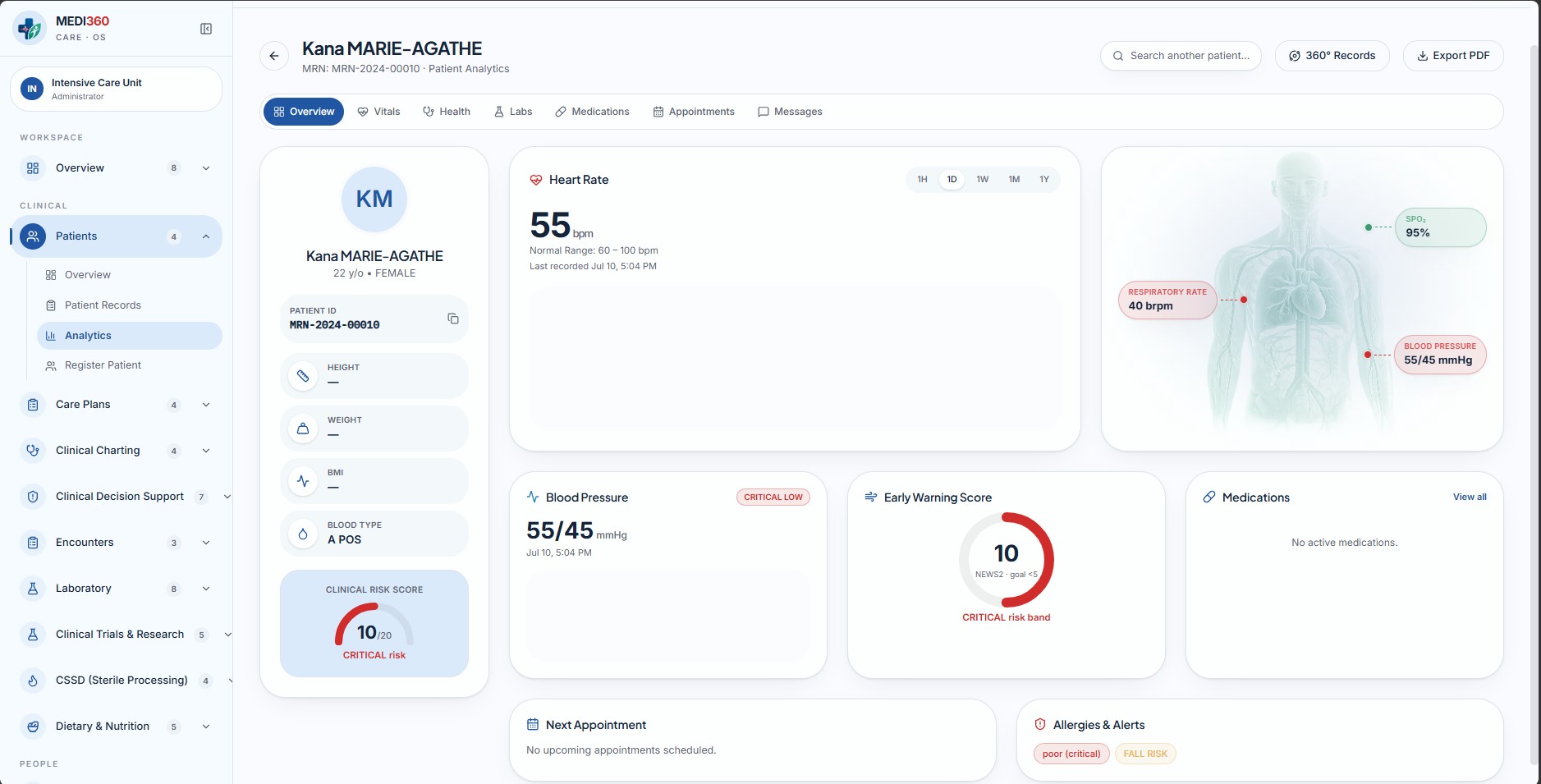
Always-visible profile panel
Photo, name, age, gender, a click-to-copy MRN, height/weight/BMI, blood type, and a Clinical Risk Score gauge, the same NEWS2 early-warning score from the Vitals tab, shown as a circular dial colored by risk band (normal, warning, critical).
The seven tabs
| Field | What it means |
|---|---|
| Overview | Heart-rate trend chart (toggle 1H/1D/1W/1M/1Y), an anatomy panel with live SpO2/respiratory rate/blood pressure callouts, the early-warning score gauge, up to 3 active medications, the next appointment, and any allergies or active flags. |
| Vitals | Six stat tiles (heart rate, blood pressure, SpO2, respiratory rate, temperature, pain) each flagged if outside normal range, plus the heart-rate trend chart and the full readings history table. |
| Health | Blood type, gender, date of birth and status, the active problem list (diagnoses with ICD-10 codes, flagged Chronic where relevant), and full allergy/flag detail. |
| Labs | Lab results from the last six months, with reference ranges and abnormal-result flags. |
| Medications | All active medications, with strength, form, frequency and instructions. |
| Appointments | The next scheduled appointment plus history for up to the last 20 visits. |
| Messages | Placeholder, patient messaging is handled in the Communication module and isn't linked from here yet. |
Header actions
Patient 360° Records (Bio-Scan)
The most complete view in the module: every hospital module's data for one patient, aggregated, charted, and mapped onto an interactive body.
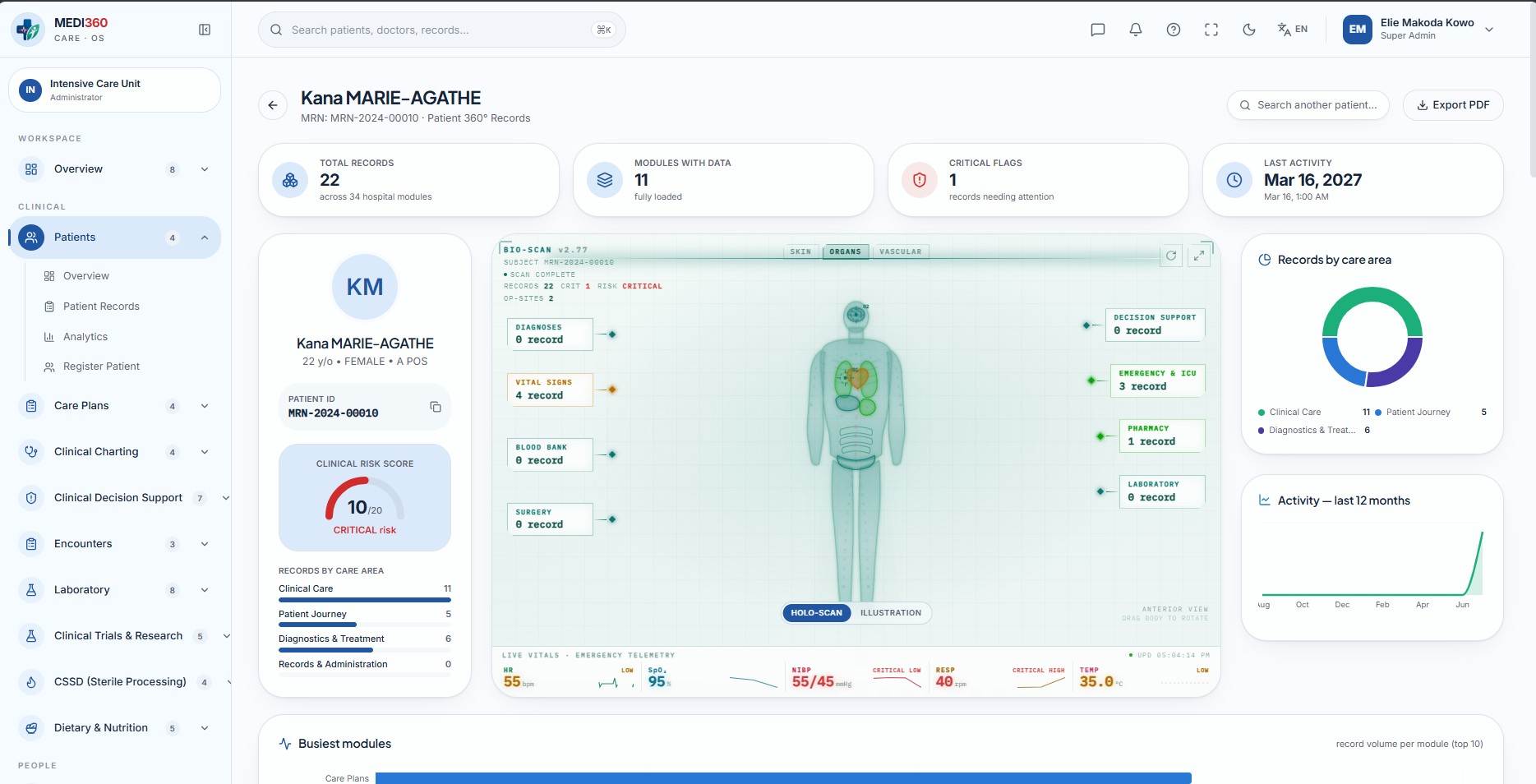
Top summary tiles
| Field | What it means |
|---|---|
| Total records | Every record for this patient, across every hospital module. |
| Modules with data | How many of the hospital's modules actually hold something for this patient. |
| Critical flags | Count of records marked critical; the tile turns red-tinted if greater than zero. |
| Last activity | The most recent dated record anywhere in the file. |
The interactive body ("Holo-Scan")
A rotatable, scan-styled 3D body model sits at the center of the page. It's the fastest way to jump straight to a specific type of record.
Click and drag to rotate, or press auto-rotate to spin it continuously. Fullscreen expands it to fill the screen.
Switch between Skin / Organs / Vascular layers, and click any organ to jump straight to its module's card below.
| Field | What it means |
|---|---|
| Brain | Decision Support (clinical safety alerts). |
| Lungs | Emergency & ICU visits. |
| Heart | Vital Signs. |
| Liver | Laboratory results. |
| Stomach | Pharmacy. |
| Pelvis | Surgery. |
| Kidneys (rotate to the back) | Blood Bank. |
Small colored markers ("op-site" markers) also appear at realistic body locations for actual surgeries, wounds, imaging studies or infections on record, click one to jump to the matching module. A live monitor strip along the bottom refreshes every 15 seconds with current heart rate, SpO2, blood pressure, respiratory rate and temperature. Prefer a simpler view? Toggle to Illustration for the same information as flat, labeled callouts instead of an interactive 3D model.
Two side charts
Records by care area — a donut chart splitting all records into Clinical Care, Patient Journey, Diagnostics & Treatment, and Records & Administration. Activity, last 12 months — how many records were created each month, a quick read on how recently active this patient's file has been.
Busiest modules
A bar chart ranking the top modules by record count for this patient, useful for seeing at a glance whether their history is dominated by, say, Labs or Pharmacy.
Module cards, grouped into four areas
Below the visuals, every module with data for this patient gets its own flippable card. Click a card (or press Enter/Space) to flip it and see the patient's most recent records in that module; click again to flip it back. Each section header has a Flip all button to open or close every card in that group at once.
| Field | What it means |
|---|---|
| Clinical Care | Diagnoses, vitals, allergies, clinical notes, CPOE orders, care plans, decision support. |
| Patient Journey | Appointments, encounters, admissions/ADT, emergency visits, ICU stays, visitors. |
| Diagnostics & Treatment | Laboratory, radiology, pharmacy, surgery, blood bank, immunizations, maternity, dietary, wound care, rehabilitation, home care, remote monitoring, infection control, palliative care. |
| Records & Administration | Documents, billing, insurance, communications, safety incidents, clinical trials, and the HIPAA chart-access audit trail. |
Good practices
Search before you register
Use Mark Deceased, not Deactivate
Revoking a consent needs a real reason
Watch the NEWS2 score